How to calculate Hubbard parameters#
Overview#
This tutorial will guide you through the process of setting up and running Hubbard parameters calculation for LiCoO2.
Steps#
Launch the app, then follow the steps below.
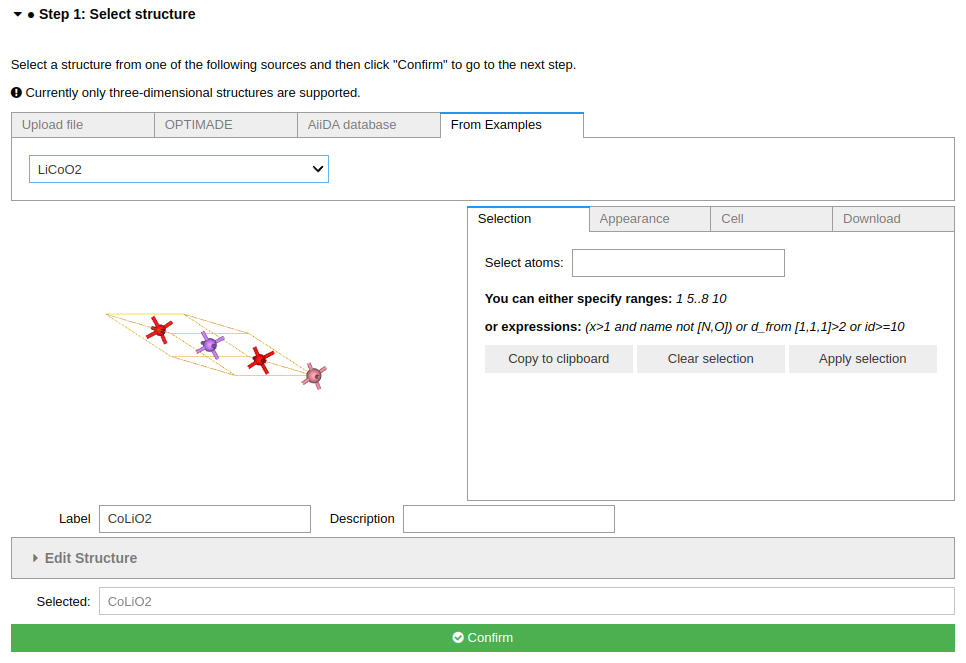
Step 1 Select a structure#
For this tutorial task, please use the From Examples tab, and select the LiCoO2 structure.
Click the Confirm button to proceed.
Step 2 Configure workflow#
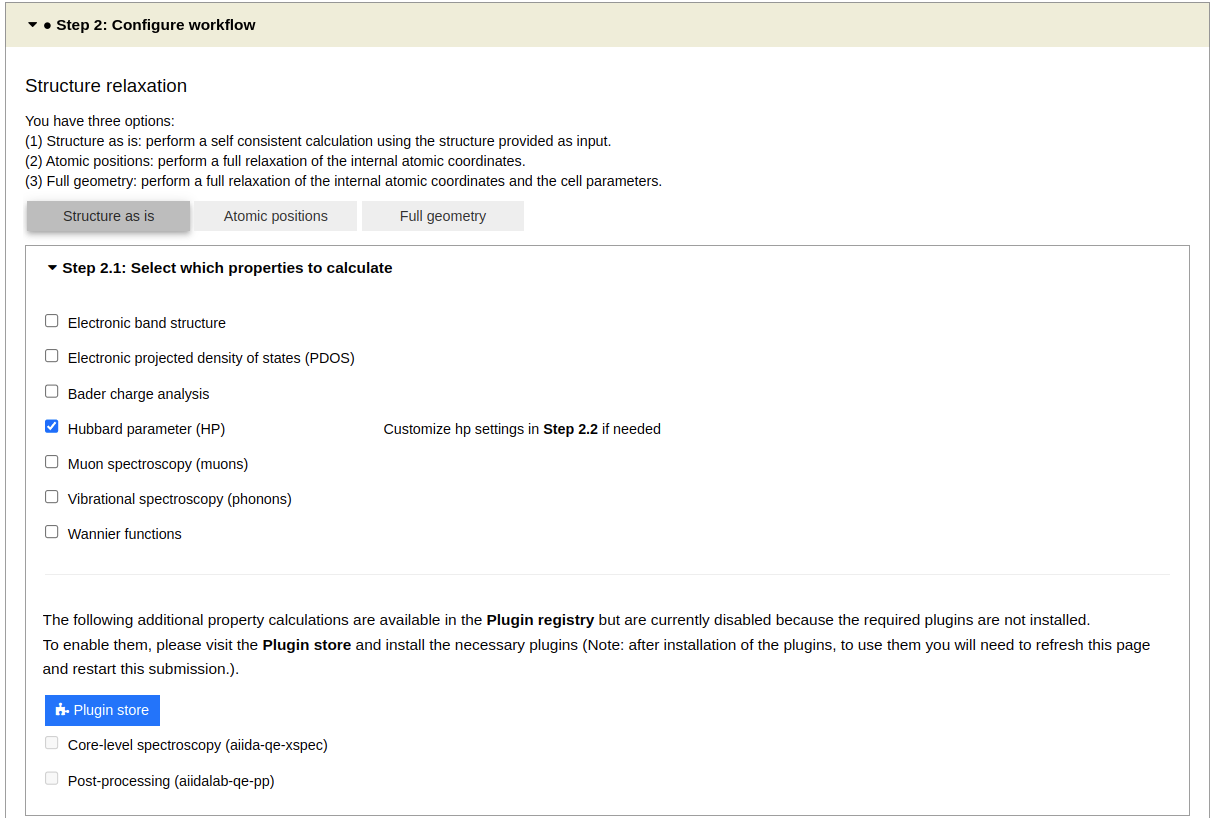
In the Configure workflow tab, set the following parameters:
In the Structure optimization section, select
Structure as is.In the properties section, select
Hubbard parameter (HP)
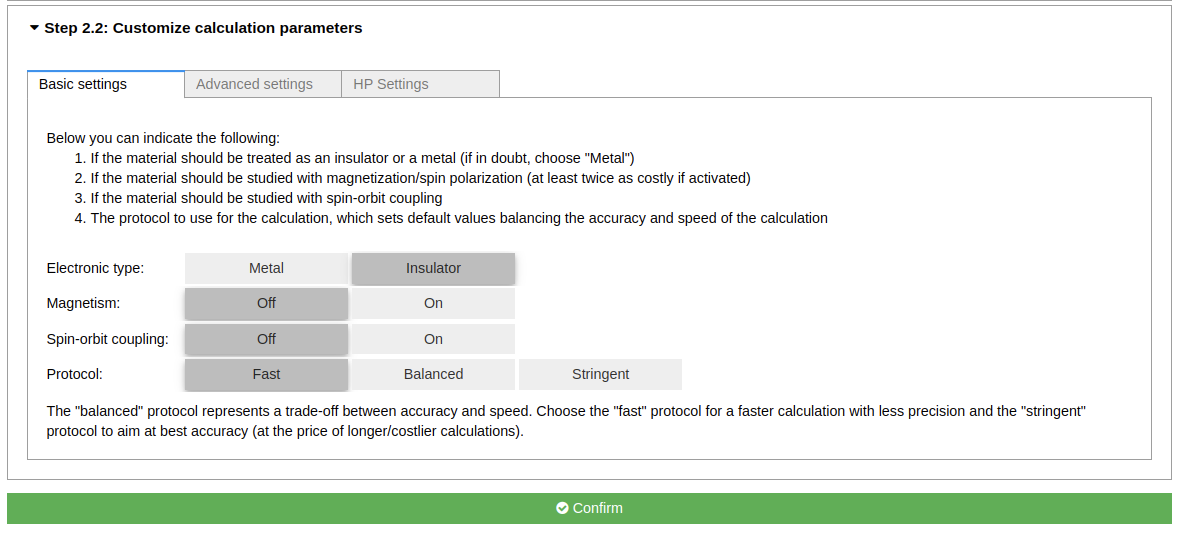
In the Basic Settings tab, set the following parameters:
Set Electronic Type to
InsulatorSet Protocol to
Fast
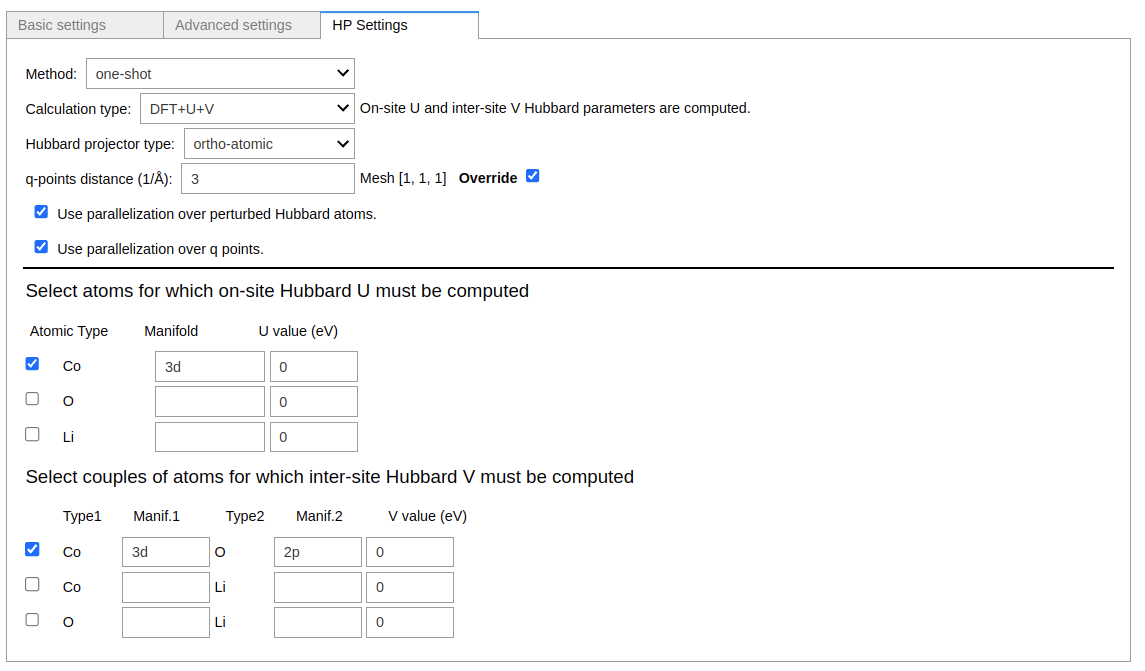
Then go to the HP setting tab and, in the Select atoms for which on-site Hubbard U must be computed section, select Co by ticking the appropriate box.
Set the Manifold to 3d.
In the Select couples of atoms for which inter-site Hubbard V must be computed section, select first row by ticking the appropriate box.
Set the Manifold to 3d and 2p for the Co atom and O atom, respectively.
Click the Confirm button to proceed.
Step 3 Choose computational resources#
In this small system, we can use the default localhost computer to run the calculation.
Tip
For large system, we need the high-performance computer to run HP calculation. Please read the relevant How-To section to setup code on a remote machine.
Set the number of CPUs/nodde to 2.
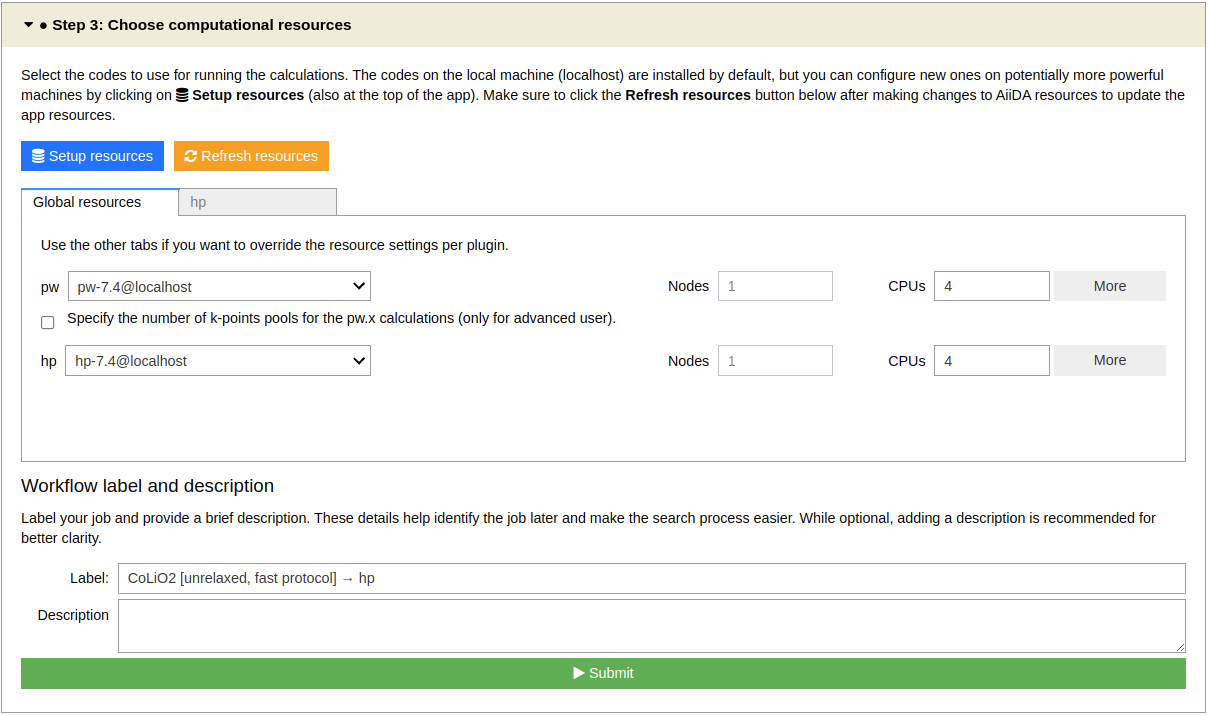
Then, click the Submit button.
Step 4 Check the status and results#
The job may take 5~10 minutes to finish.
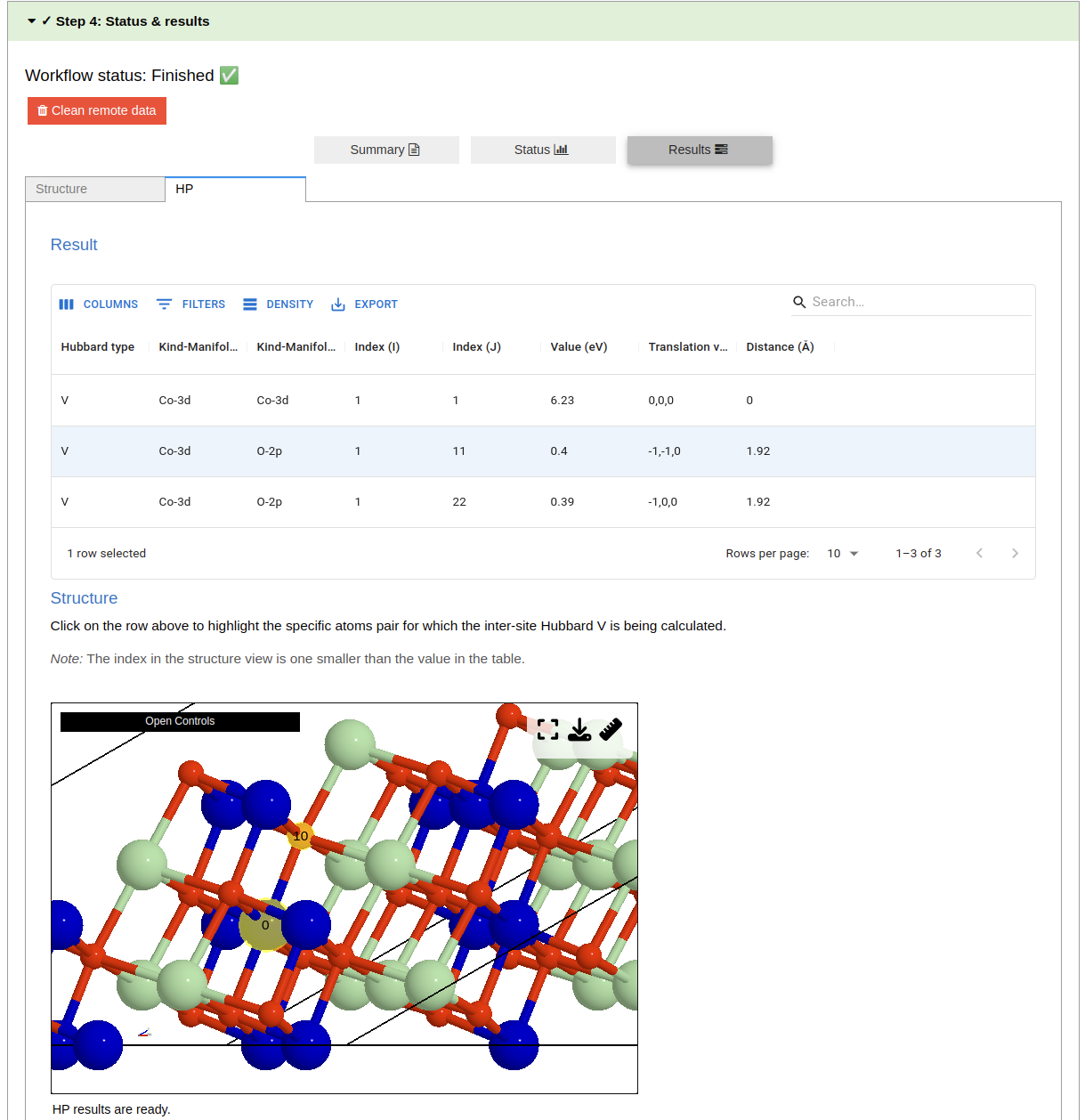
While the calculation is running, you can monitor its status. When the job is finished, you can view result spectra in the HP tab.
Tip
If the HP tab is now shown when the jobs is finished.
Click the QeAppWorkChain<pk> item on top of the nodetree to refresh the step.
Here is the result of the HP calculation. It includes: - the Hubbard data for the structure - the Structure viewer
Click on the row above to highlight the specific atoms couple whose inter-site Hubbard V is being calculated.
Congratulations, you have finished this tutorial!
Another example#
Please try another example: NiO.
Questions#
If you have any questions, please, do not hesitate to ask on the AiiDA discourse forum: https://aiida.discourse.group/.